As a team admin, you can manage security options that control who joins your team and accesses its projects. This guide covers how to link a team domain, enable Team Discovery so people with a matching email can join automatically, and prohibit external guests from joining team projects.
Linking a team domain and enabling Team Discovery are available on a free team workspace or the Business plan. Restricting external guests requires the Business plan.
Quick tip
Link your team domain
The team domain option allows an admin to link their team to their corporate email domain. This is available on a free team workspace or the Business plan.
Let’s say the admin’s email is alex@todoist.com. Their associated team domain would be todoist.com. Turning this option on is a prerequisite to use the Team Discovery option.
Team domains only work with unique corporate email domains. If you signed up with a generic email address, like gmail.com, yahoo.com, or hotmail.com, and you’d like to change it to your corporate email, follow these steps.
Team domain changes
If the admin who created the Todoist team changes their email associated with their account, Team Discovery still works with the admin’s previous email domain.
If alex@todoist.com changes their account email to alex@twist.com, Team Discovery is still available to Alex’s teammates with the @todoist.com email domain.
Enable Team Discovery
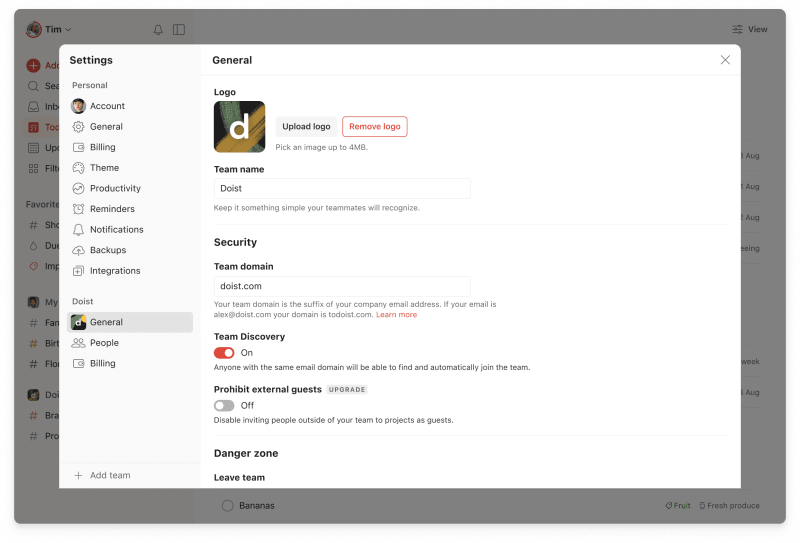
Team Discovery is available on a free team workspace or the Business plan. It lets anyone who shares the same email domain find and automatically join the team in Todoist. They’ll see a Join the team link at the bottom of the sidebar. Admins are the only people who can turn Team Discovery on or off for the team workspace.
When you create a new team in the Todoist web app, Team Discovery is off by default. To let people with the same email domain join without an invite, an admin needs to turn it on. Teams that already exist keep their current setting.
If you’re an admin, follow these steps:
- Open the Todoist web or desktop app.
- Click your team workspace name in the sidebar.
- Click Settings at the top-right.
- Click the Team Discovery toggle to turn it on or off for the workspace.
- Click Update to confirm.
With Team Discovery, admins don’t need to add each new member one by one. Continuing the example from above, anyone with an email address ending in @todoist.com can automatically join Alex’s team.
If your team is on the Business plan, each person who joins through Team Discovery is billed as a member. You’ll see this change in your Todoist Business invoice.
Prohibit external guests
When an admin turns on the Prohibit external guests option, no one can invite guests to team projects. This option is only available on the Business plan.
Use it to keep team projects and discussions inside your team.
Troubleshooting and limitations
- The team admin’s email address must be verified in order to enable Team Discovery. Learn how to verify your email.
- If the domain is already associated with an existing team or workspace, Team Discovery won’t be available. As a workaround, contact the existing team’s admin and ask them to make it a company-wide team. Then, each department can use folders to manage their projects.
Get help
If you’re having trouble setting up your Todoist team domain or using Team Discovery, get in touch with us.