Use Todoist on the web, desktop, or mobile. All you need is your account email address and password, or a linked Google, Apple, or Facebook account. You can also log out from any device at any time. If you've enabled two-factor authentication, you'll need your authentication app or a recovery code to log in.
Log in to Todoist
Note
- Open the Todoist app.
- Click Log in.
- Choose how you want to log in to your account (it should be the same option you used to create your account):
- Click Continue with Google and choose the Google account associated with your Todoist account.
- Click Continue with Facebook and connect to your Facebook account.
- Click Continue with Apple and connect to your Apple account.
- Enter your email address and password and then click the Log in button.
- Open the Todoist app.
- Click Continue in your browser.
- You'll be redirected to the login page in your browser. Choose how you want to log in to your account (it should be the same option you used to create your account):
- Click Continue with Google and choose the Google account associated with your Todoist account.
- Click Continue with Facebook and connect to your Facebook account.
- Click Continue with Apple and connect to your Apple account.
- Enter your email address and password and then click the Log in button.
- Click Open Todoist on the pop-up notification.
Open Todoist for iOS and choose how you want to log in to the Todoist account:
- Tap Continue with Apple to log in with a Apple ID.
- Tap Continue with Google to log in with a Google account.
- Tap More sign-in options and select any of the following:
- Continue with Facebook to log in with a Facebook account.
- Log in with Email to log in with an email address and password.
- Sign up with Email to create a new Todoist account.
Open Todoist for Android and choose how you want to log in to the Todoist account:
- Tap Continue with Google to log in with a Google account.
- Tap Continue with Facebook to log in with a Facebook account.
- Tap More sign-in options and select any of the following:
- Log in with Email to log in with an email address and password.
- Sign up with Email to create a new Todoist account.
Log out of Todoist
- Open the Todoist app.
- Click your avatar in the top-left.
- Select Log out.
To log out of Todoist on your iPhone:
- Open Todoist for iOS.
- Tap on Browse in the bottom-right.
- Tap the gear icon in the top-right.
- Tap Log out.
To log out of Todoist on your iPad:
- Open the Todoist app.
- Tap the gear icon in the top-left.
- Tap Log out.
- Open the Todoist app.
- Tap on Browse in the bottom-right.
- Tap the gear icon in the top-right.
- Tap Log out.
Recover your account
When you first set up two-factor authentication, Todoist generates a set of recovery codes for your account. If you've lost access to your third-party authentication app, and you can't get the one-time passcode, you can use any of these recovery codes to log back in to your account.
If you saved them, here's how you'll use one to log back in:
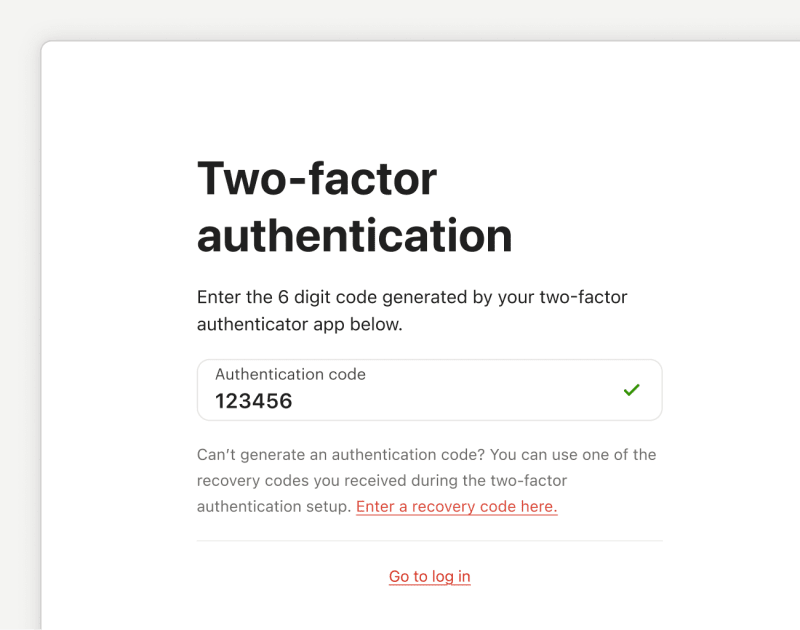
- Open the Todoist login page on your web browser.
- Enter your account email address and password.
- Click Enter a recovery code here below the Authentication code field.
- Enter one of your saved recovery codes.
If you didn't save your recovery codes, or they're no longer working, request a recovery code from our team. Todoist will send a recovery code to your account email address.
Get in touch
If you're having trouble logging in to or out of your Todoist account, get in touch with us.