New to Todoist or need a quick refresh? This guide brings together the features, terms, and concepts that matter most, with simple explanations to help you get the most out of Todoist.
Note
Jump to: What is Todoist? · Add and manage tasks · Organize your work · View your work · Collaborate · Teams · Power features · Plans and programs · Mobile · Your Account
What is Todoist?
Tasks
An item on a list. Tasks represent individual actions or to-dos you need to complete. You’ll find out how to add, edit, duplicate, move, complete, uncomplete, or delete a task in Introduction to tasks.
Projects
A list of tasks organized together. Projects help you group related work by area of focus or goal. You can learn all about projects in our help center article, Introduction to projects.
Note
Inbox
Default place for ideas or tasks until they're added to a project. Consider the Inbox as a quick capture space for any task that comes to mind before sorting and organizing them into their respective projects.
Home view
Main page to begin Todoist. Your starting point when you open the app. You’re able to change your home view in a few quick steps.
Add and manage tasks
Quick Add
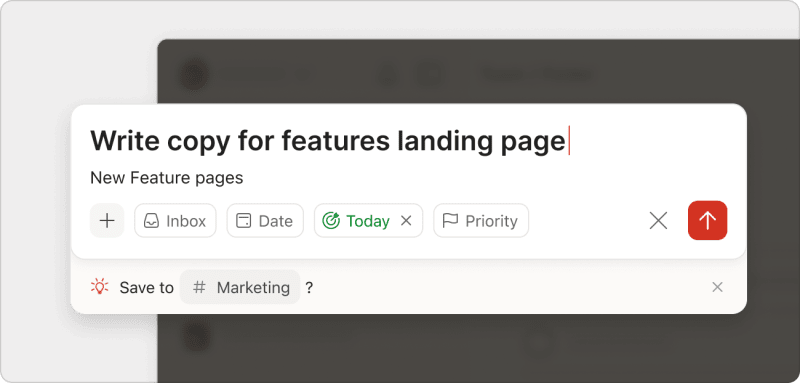
Used to add a task rapidly. Quick Add opens a floating task entry field, so you can capture and schedule tasks quickly from anywhere in Todoist. Attach files and assign task attributes, like labels or priority, without leaving Quick Add. Start using Task Quick Add or customize Quick Add in Todoist.
Smart date recognition
Used to recognize, highlight, and add dates in task names. Also called natural language date parsing, this feature lets you type dates conversationally like “tomorrow at 3 PM.” You can turn smart date recognition on or off.
Date
The field in Todoist where you can schedule when a task should happen. Can include both the calendar date and a time. Here’s how to add a date to your task.
Deadline
The latest day by which a task must be completed. A deadline creates urgency tracking, and is different from a date (which is when you plan to work on something).
Duration
An estimate of how long a task will take to complete. Requires a date and time to be set before it can be added. The maximum duration is 24 hours.
Recurring
Tasks that happen more than once. You can set tasks to recur daily, weekly, monthly, or on a custom schedule. Find out more about recurring dates.
Priority
Rank of importance for tasks. Priority levels are p1 through p4, with p1 being the highest priority. Get started by setting a priority to a task.
Description
Additional text under the task name. Task descriptions provide details about what needs to be done and can include formatted text, links, and attachments. Give it a try, and add a task description in Todoist.
Reminders
Used to remind yourself or teammates about a task. Reminders alert you at a specific time to help ensure you don't miss important deadlines. Todoist offers several types of reminders:
Automatic reminders: A reminder that’s added by default whenever a date and time is scheduled to a task, based on your Reminders settings
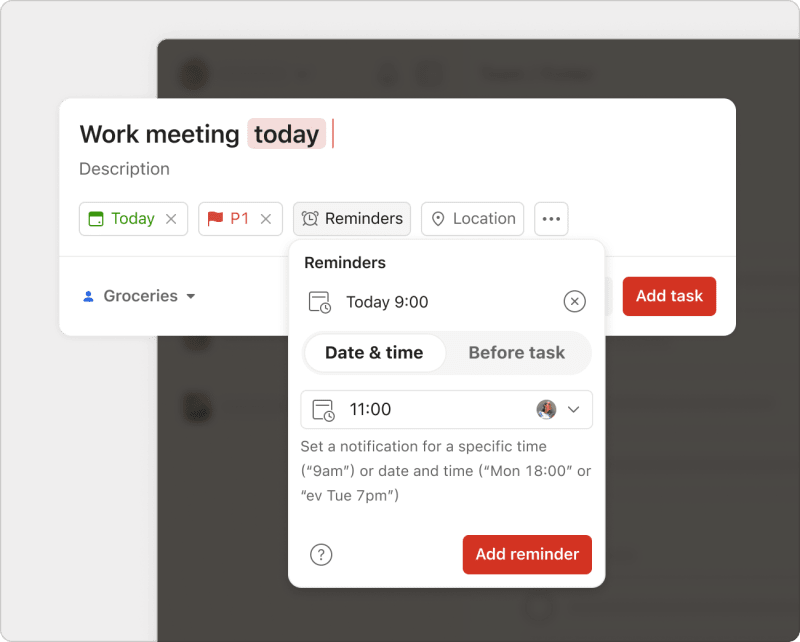
Custom reminders: A reminder based on a specific date and time, or the amount of time before a task is due
Recurring reminders: A reminder that notifies you on a recurring basis (for example: ev Tuesday 7:00)
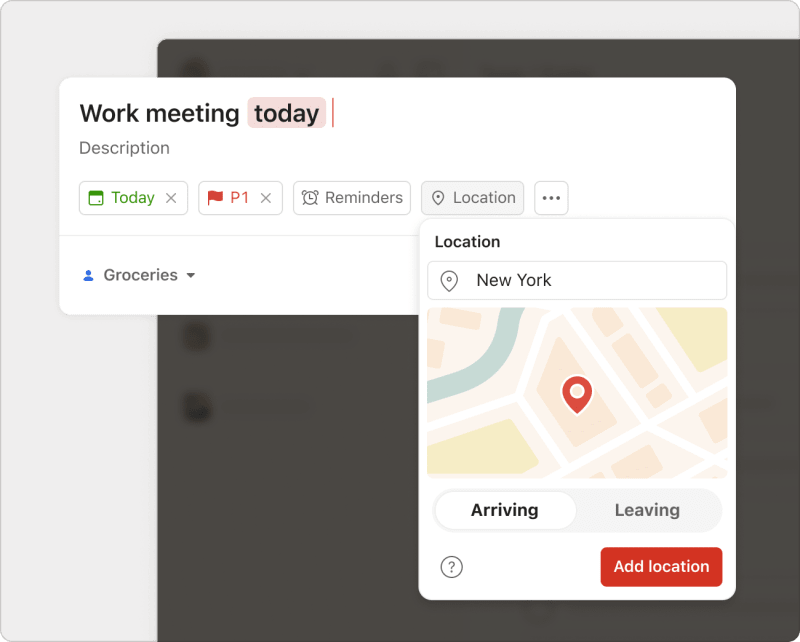
Location reminders: A reminder that notifies you when you’ve arrived at a specific location. Learn more about location reminders
Complete/uncomplete
To check off or reopen a task. Completed tasks are marked as done and move out of your active lists. Here’s how to complete a task, and this is how to uncomplete one.
Schedule/reschedule/unschedule
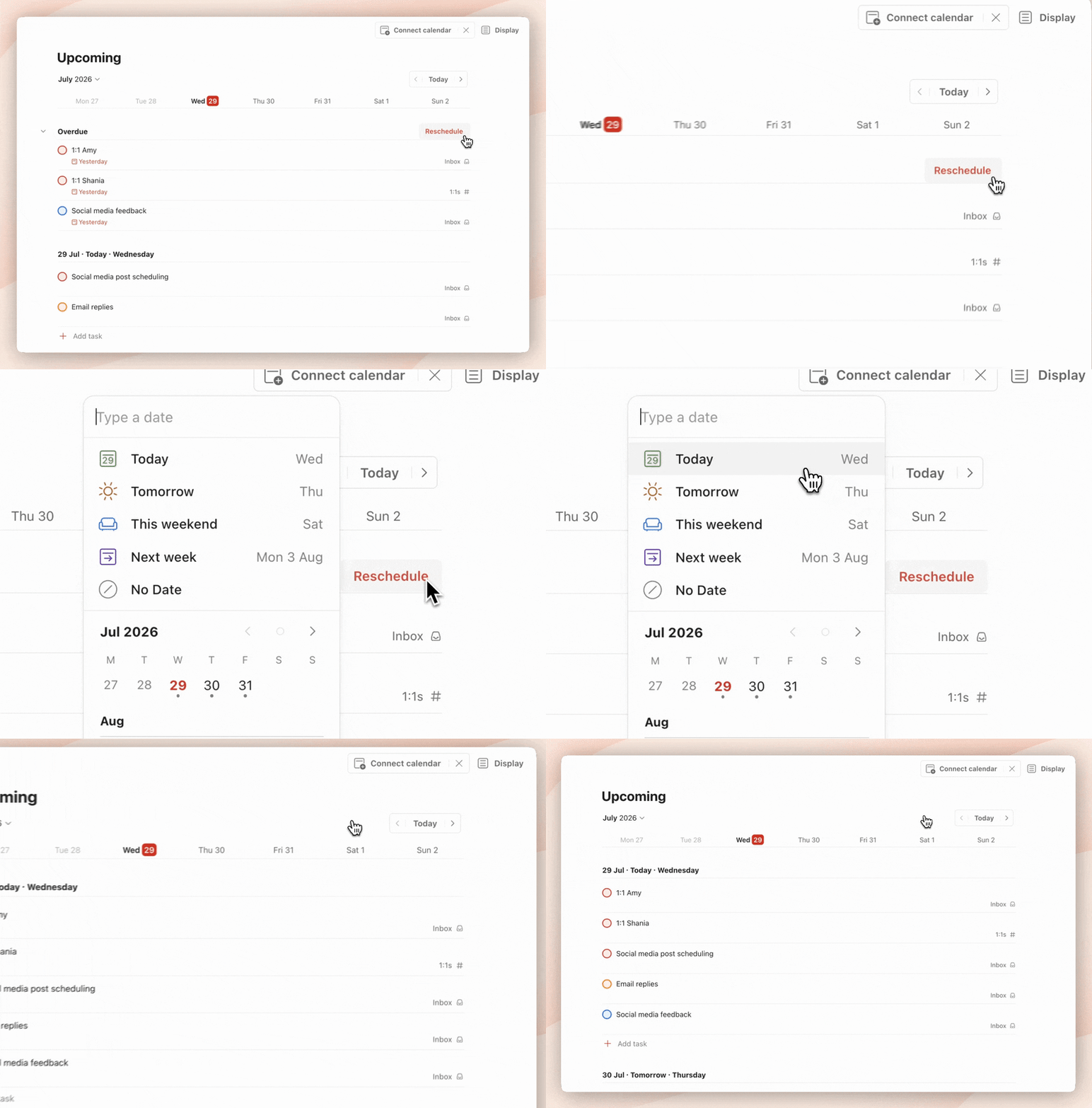
To add a date, change a date, or delete a date from a task.
Postpone
To shift or adjust a task to the next occurrence.
Duplicate
To create a copy of a task. If you want to reuse the details of a task, you can save time and effort by duplicating the task and any of its active sub-tasks.
Move
To relocate tasks or projects to different locations within Todoist. For example, you can move a personal project to your team, or move a team project to your personal projects. You can also move a task.
Organize your work
Sections
Used to split projects into parts. Sections help you organize tasks within a project into logical groups by status, priority, or phase. Get the steps in Introduction to sections.
Sub-tasks
Tasks nested under a parent task. Sub-tasks help you break down complex work into smaller, actionable steps. You’re able to turn an existing task into a sub-task, or a sub-task into a parent task. Find out more about sub-tasks and the best practices in Introduction to sub-tasks.
Sub-projects
Projects nested under a parent project. Sub-projects help you organize related work hierarchically. For example, you might create “parent” projects called “Home” and “Health” and then organize various sub-projects underneath each one.
Note
Labels
Tags that help batch similar tasks together. Labels let you categorize and find related tasks across different projects. Examples include @email, @waiting, or @quick. Take a look at Introduction to labels for more ideas, or how to add, edit, and delete a label.
Filters
Saved task searches. Filters let you create custom views that display tasks matching specific criteria using queries to search across all your projects. This helps you narrow down your lists according to task name, date, project, label, priority, date created, and more. Check out our Introduction to filters to find out how.
Favorites
Used to highlight your important items in the navigation menu. Here’s how to add a project, label, or filter to favorites in Todoist.
Template
Set of ready-to-use tasks, sections, and dates what you can use or re-use in any new project. If you're working with others in a shared project, you can create a template where tasks are already assigned to a specific person.
Sort
To arrange items by characteristics. Sorting options let you organize tasks by name, date, date added, deadline, priority, manually, or others. You can sort or group your tasks in Todoist.
Group
To collect tasks with the same attribute into separate sections. Grouping options let you organize tasks by date, date added, deadline, priority, or label. Find out how to group your tasks in Todoist.
Archive/unarchive
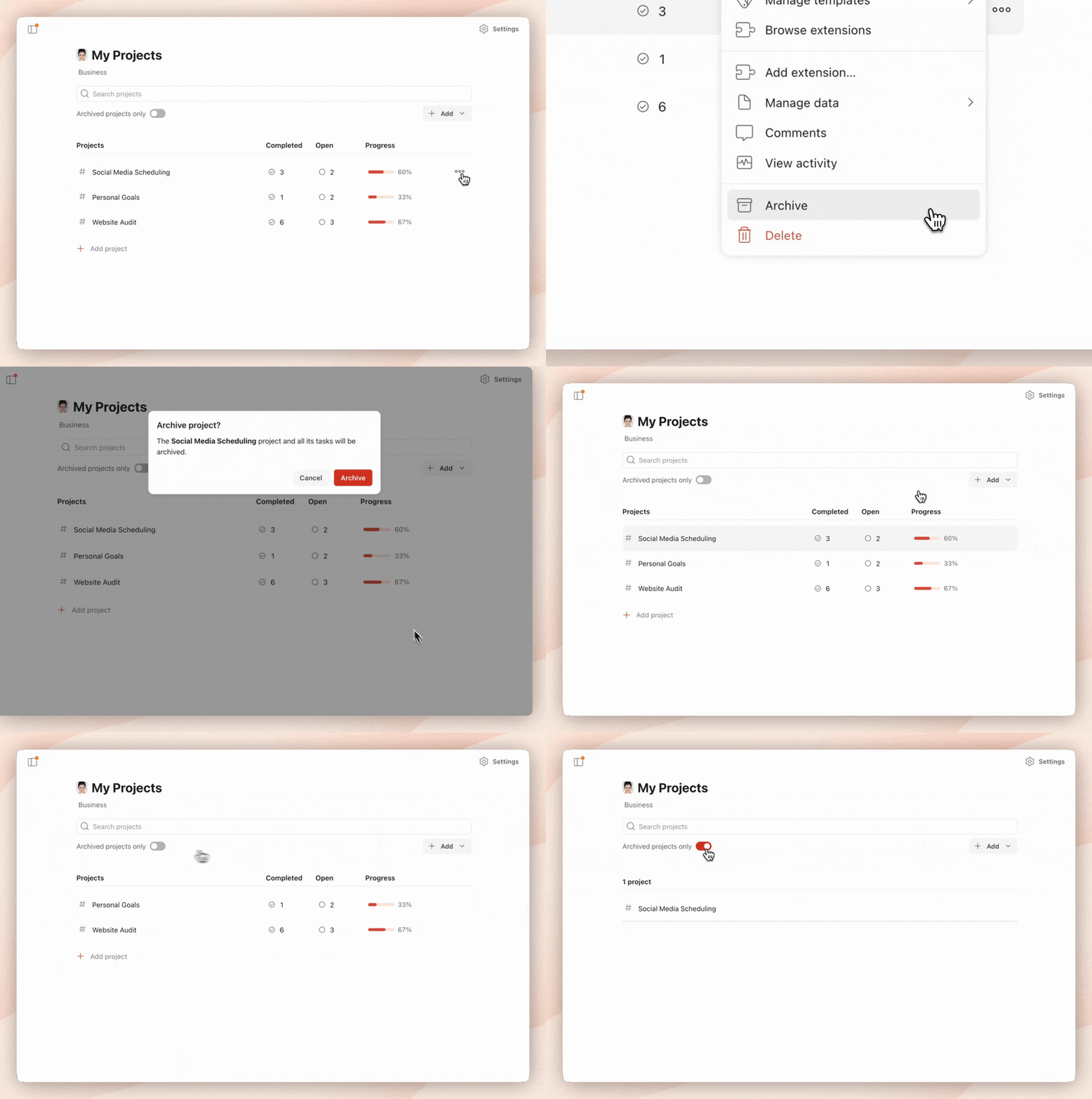
To move a project out of or into an active project list. Archived projects are preserved for future reference and can be restored at any time. You can also archive or unarchive a section.
View your work
Display
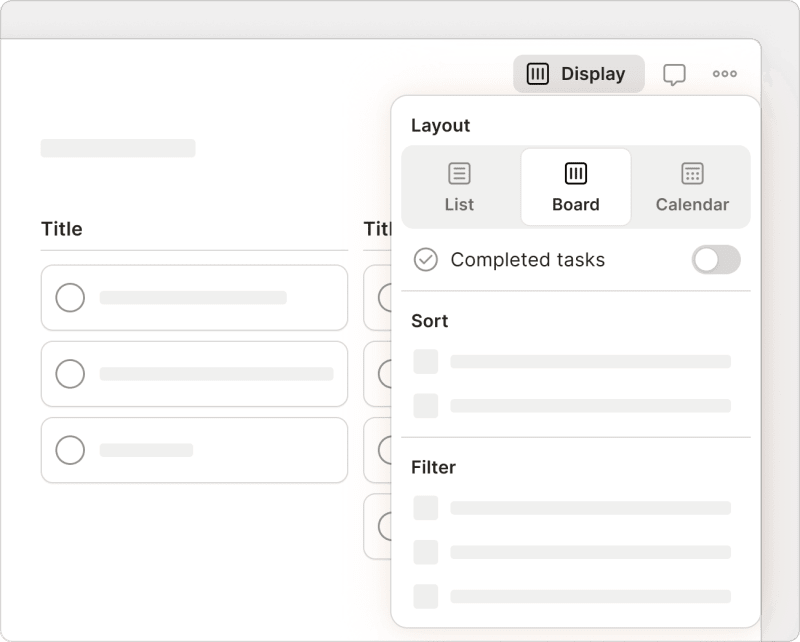
A menu of display options to apply to your project. Apply or reset any sorting options, grouping options, or layout changes to your Todoist project or view. The Display icon is located at the top-right of any project or view.
List layout
View of a project as a list. The traditional format for viewing tasks. If you prefer a straightforward list, you can use the list layout in Todoist.
Board layout
View of projects in column form. Board layout displays tasks in a Kanban-style format with columns.
Calendar layout
View of a project, label, filter, Today, or Upcoming as a calendar. Calendar layout displays your tasks by date.
Task view
Detailed view of all information associated with a task. Find out how to use the task view to manage tasks in Todoist.
Today view
View of all tasks with dates scheduled for today. Today view helps you focus on what needs to be done right now.
Upcoming view
View of all tasks with dates. Upcoming view displays your tasks organized by date over the coming days and weeks. Go ahead and plan your week with the upcoming view.
Productivity view
View for goals, Karma, and completed tasks. Check out how to use the Productivity view in Todoist.
My Projects
The section of your sidebar containing your personal projects. This is where you organize tasks for individual use or collaboration with friends and family.
Search
The search bar is a field to enter keywords or search queries in order to find items. You can pull up specific tasks, projects, filters, labels, and comments. Find out how to search in Todoist.
Collapse/expand
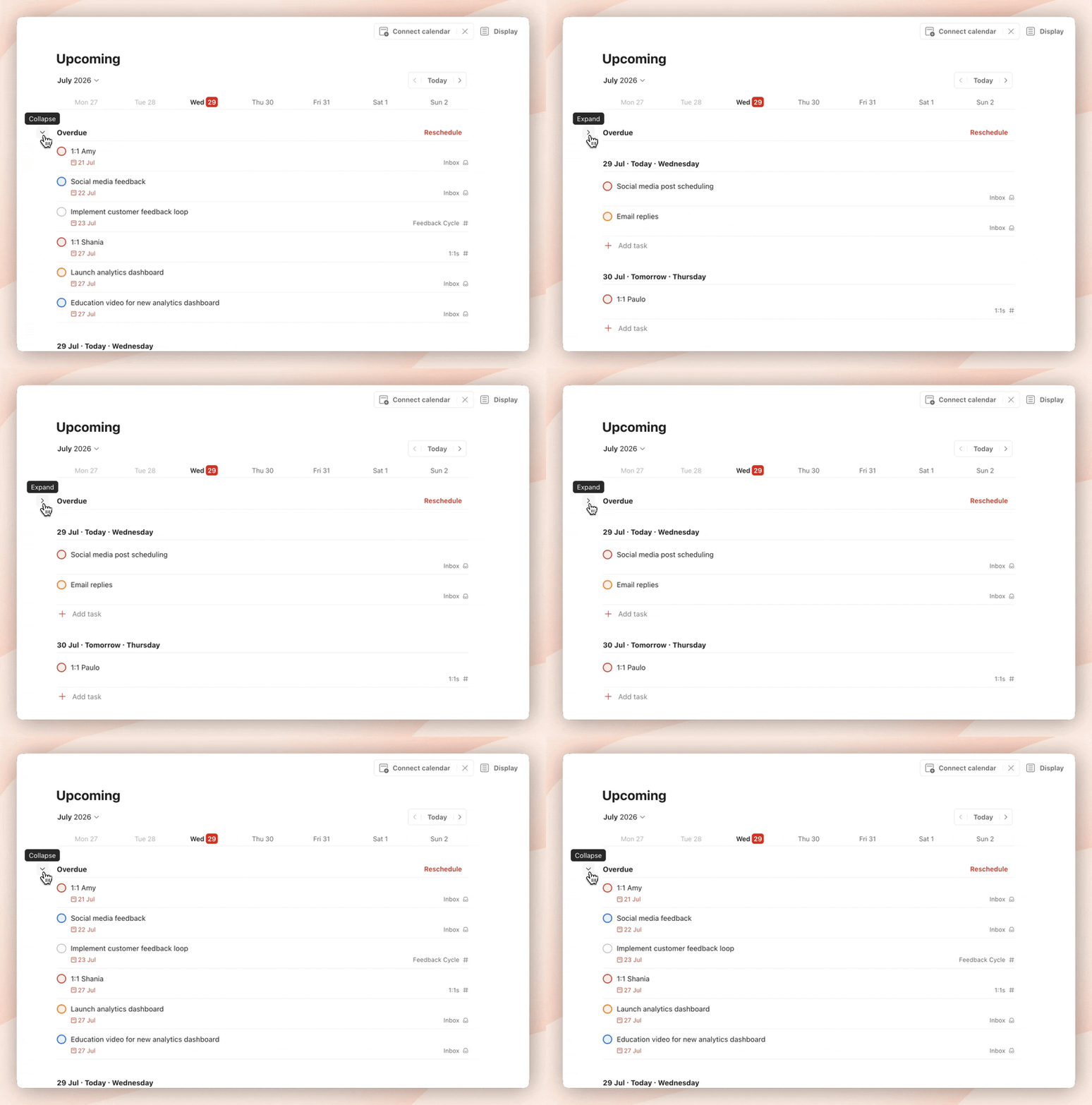
To hide or view content (tasks, sub-tasks, sub-projects) with an arrow.
Drag and drop
To move an item by clicking and dragging it to a new location.
Three dots menu
The menu that appears when you tap or click the three dots icon. Used to find more options.
Multi-select toolbar
A toolbar that appears at the bottom of the web or desktop app when selecting multiple tasks.
Collaborate
Personal projects
Projects you create for your own use or for collaborating with friends and family. Examples include household chores, family vacations, and party planning. Personal projects appear in the My Projects section of your sidebar.
Note
Share
To invite people to a project. You can share both personal projects (with friends and family) and team projects (with teammates and guests).
Here’s how to decide between casual or work collaboration in Todoist.
Assign
To delegate a task to a specific person. In shared projects, you can assign tasks to yourself or others to clarify ownership and responsibility.
Note
Comments
Text attached to tasks or projects. Comments let you add context and files, collaborate with others, or track progress.
Reporting
A history of edits and updates to tasks and projects. Information is organized by date and filtered by project, person, or event type. Here is how to view Reporting in Todoist.
Notifications
A gentle reminder about something new. Notifications inform you about task assignments, comments, reminders, and other updates. You can choose which notifications you receive from Todoist.
Teams
Team
A group of people collaborating on work-related projects in Todoist. Each team has its own shared space with projects, templates, admin controls, and one central bill.
Team workspace
The team workspace is the overview area where members can browse, preview, and join team projects. It shows all team projects in one place, along with team templates and activity summaries.
Team projects
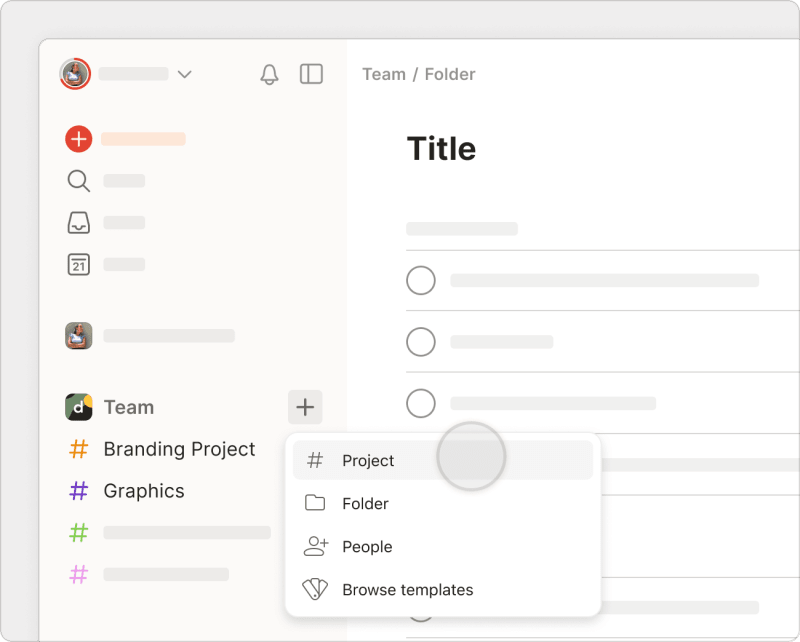
Projects created within a team for collaborating with teammates on work-related tasks. Examples could include meeting agendas, employee onboarding, product roadmaps, and client work. Team projects appear in your team section of the sidebar.
Folders
A way to group related team projects together in a team workspace. Folders help teams organize projects by department, client, or initiative. They serve a similar purpose to sub-projects, but are designed for team collaboration rather than personal use.
Admins
People with an admin role who can manage team settings, delete the team, and manage other people in the team.
Members
People with a member role who have full access to all data within the team but don't have the permissions to manage team settings, delete the team, or manage other people in the team.
Guests
People outside of your organization that you want to collaborate with on select team projects. Guests have limited access and can only see the specific projects they’re invited to.
People
An overarching term for everyone in a team, regardless of their role (admin, member, or guest).
Power features
Ramble
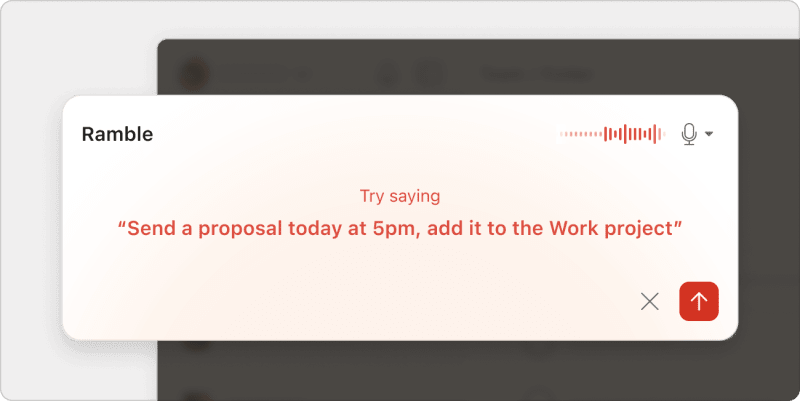
Ramble is a voice-to-tasks feature in Todoist that lets you quickly add tasks using your voice.
Todoist Assist
A set of AI-powered features in Todoist that helps you work more efficiently by offering smart suggestions and automating tasks, including tools like Email Assist, which turns forwarded emails into tasks, and Filter Assist, which helps you create filters using natural language.
Karma
A productivity scoring system designed to help you build habits and stay motivated. Karma tracks your progress and celebrates your wins as you complete tasks, hit your daily goals, and maintain your streaks. Karma levels span from Beginner all the way to Enlightened.
Streaks
A consecutive series of days achieving your daily task goals. Streaks are tracked in your Karma and Productivity view to help maintain momentum.
Vacation mode
Used to pause Karma points and maintain streaks when you’re away. You can turn on or off vacation mode in Todoist.
Week start
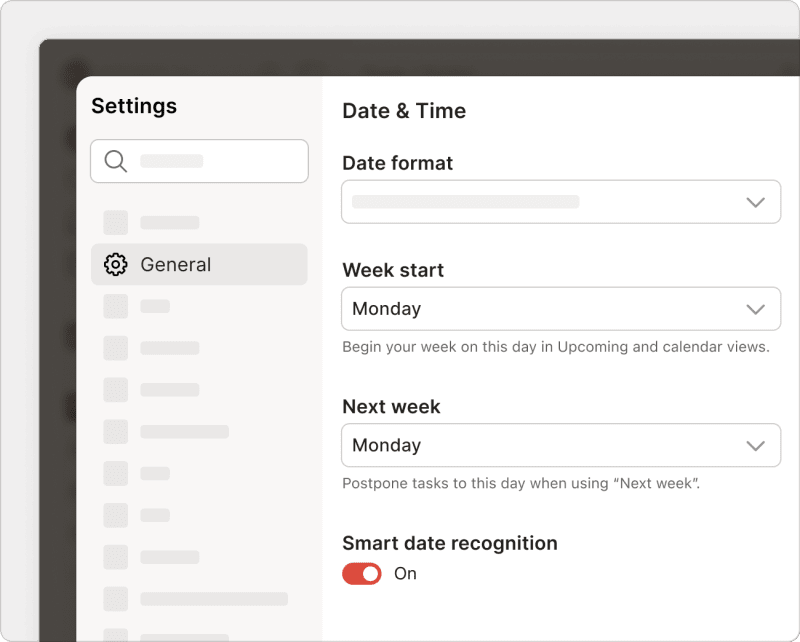
Begin your week on this day in the Upcoming view or the Calendar layout of a project. Select your preferred week start in Settings > General.
Time block
A scheduled period of time dedicated to specific tasks or activities. Learn more about time blocking in Todoist.
Integrations
Connections between Todoist and other apps and tools you use. Browse all available integrations in the Todoist integrations gallery.
Keyboard shortcuts
Combination of keystrokes used to perform a task quickly without using your mouse. Find out how to use keyboard shortcuts in Todoist.
Markdown
Used to add formatting elements to text.
Emoji
Small digital icons used to visually represent emotions, objects, ideas, or actions in text. Emoji can be added to comments and anything you can name: tasks, sections, projects, labels, and filters.
Theme
You’re able to change color themes to personalize the look and feel of your Todoist app.
Avatar
Profile picture associated with your Todoist account. You can change or remove your avatar photo.
Plans and programs
Plan
The specific features and pricing tiers Todoist offers, such as Beginner, Pro, or Business, detailing what you receive at each level. Choose your path to productivity by comparing the plans.
Beginner plan
Free plan for solo users.
Pro plan
Paid plan for individuals. The Pro plan unlocks advanced features and increased usage limits. When you’re ready to upgrade, you can get started with Todoist Pro.
Business plan
Paid plan for teams. The Business plan includes all Pro features for every person in your team, plus team-specific features like the team workspace, permissions, central billing, and collaborative tools. Get started with Todoist Business today.
Beta features
Features that are in the final stages of development and testing. Beta features may appear in your Todoist without requiring opt-in and can be used immediately if visible. They may change or be discontinued based on feedback and real-world usage.
Experimental features
Early-stage features that explore new ideas and require opt-in through your Todoist settings. Experimental features are available for early testing and feedback, may be less stable than officially released features, and can change significantly or be discontinued based on what is learned during development.
Experimentalists
People who have joined the pre-production testing group. To subscribe or unsubscribe, you can follow the steps here.
Backups
An archive of Todoist tasks, dates, time, deadlines, projects, comments, and file attachments recorded in the .csv file format. Up to 21 backups are created every time you log in and make changes to your tasks and projects.
Reload
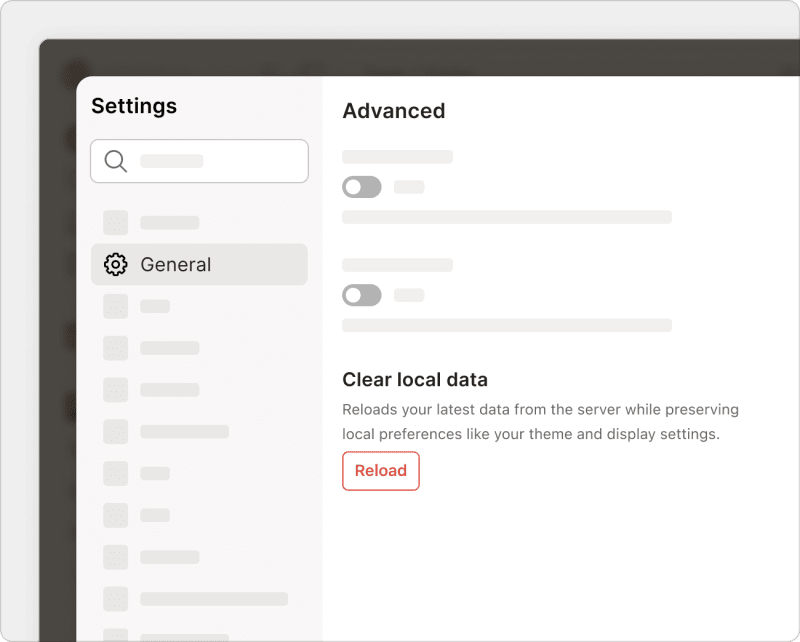
Use the Reload button to clear local data and resolve sync-related issues in the Todoist web or desktop apps. Make sure to create or download a backup of your data beforehand.
Todoist Partner Program
Programs that reward content creators, publishers, coaches, and other productivity-focused partners for introducing Todoist to new users. These programs support different types of partners in promoting Todoist and growing alongside the platform. Find out more, or apply to become a Todoist partner here.
Mobile
Navigation bar
Used to quickly access the views you use most often in Todoist. Here’s how to customize the Todoist navigation bar.
Dynamic Add button
Button used on mobile to add tasks, sub-tasks, and sections in specific views by touching and dragging it in place. This is how to use the Dynamic Add button in Todoist on mobile devices.
Context menu
An additional menu on mobile that appears for more options upon long press. Find out more about context menus with Todoist for iOS.
Your Account
Account
The account that a person logs in to access all the Todoist product features. In Settings, the Account tab is where you can change your account name or delete your account. You can also set up two-factor authentication for extra security.
Email address
The email address used to log in to your Todoist account. You may receive notifications at this exact email address for custom reminders, billing notices, or task notifications for your shared projects. You can change your email address.
Password
A sequence of characters, usually made up of letters, numbers, and symbols, someone enters to gain access to the Todoist account. You can change your password.
Two-factor authentication
Layer of security to your Todoist account that requires a one-time password generated by a third-party authentication app you install on your mobile device. You can set up two-factor authentication for extra protection.
Get in touch
For detailed information about any feature, you can browse the Todoist help center. You’re also always welcome to get in touch with us.