There are tasks you just can’t miss, like paying bills before they're due or picking up your kid from school on time. In Todoist, add urgent reminders to any task on top of your other reminders. They trigger a full-screen alarm that cuts through silent and Do Not Disturb modes, so you'll never miss what matters most.
Warning
Quick tip
Call Peter !13:00!.
Add an urgent reminder
Note
Add an urgent reminder at a specific time
This requires a Pro or Business plan.
- Tap the Dynamic Add button at the bottom-right to add a new task. If you’re editing a task, tap it to open the task view.
- Tap the Reminders chip (alarm clock icon).
- In the Date & Time section, tap Add to create a time-based reminder.
- Toggle Urgent on. A prompt will appear once asking you to enable urgent reminders.
- Tap Enable Urgent Reminders to confirm.
- Tap Allow when your Apple device prompts you to enable alarms and timers.
- Tap Save at the top-right. You’ll see the orange URGENT badge beside the reminder.
- Tap the checkmark icon at the top-right to confirm.
Add an urgent Before Task reminder
This works on any plan.
- Tap the Reminders chip (alarm clock icon).
- Select Add to add a Before Task reminder.
- Select how long before the task is due before Todoist sends a reminder.
- Toggle Urgent on.
- Tap Save at the top-right.
To set a recurring urgent reminder, make sure the task has a Date and time, then:
- Tap At time of task.
- In the Date & Time section, tap Add reminder.
- In the input field at the bottom, type a recurring date like “every Monday at 11 AM”.
- Toggle Urgent on.
- Tap Save at the top-right.
The urgent reminder is now set. When the time comes, you'll see a full-screen alarm even if your device is locked, in Silent mode, or in Focus mode.
Add an urgent reminder at a specific time
This requires a Pro or Business plan.
- Tap the Dynamic Add button at the bottom-right to add a new task. If you’re editing a task, tap it to open the task view.
- Tap the Reminders chip (alarm clock icon).
- In the Date & Time section, tap Add reminder to create a time-based reminder.
- Toggle Urgent on.
- Tap Save at the top-right. You’ll see the orange URGENT badge beside the reminder.
- Tap Okay at the bottom-right to confirm.
Add an urgent Before Task reminder
This works on any plan.
- Tap the Reminders chip (alarm clock icon).
- Select Add reminder under Before task.
- Select how long before the task is due before Todoist sends a reminder.
- Toggle Urgent on.
- Tap Okay at the bottom-right.
Standalone recurring urgent reminders aren't currently available on Android.
Change the time of an urgent reminder
If you need to quickly change the time of an urgent reminder, tap the dismiss icon next to the reminder to remove it from the task. Then, add a new one with the updated time.
Note
Respond to an urgent reminder
Perfect timing! That reminder’s given you enough time to wrap up and prepare for your next task. Here’s how to respond to the urgent reminder:
When an urgent reminder alarm goes off, it’ll appear on your device’s lock screen. You can either tap Complete or slide right to turn the alarm off.
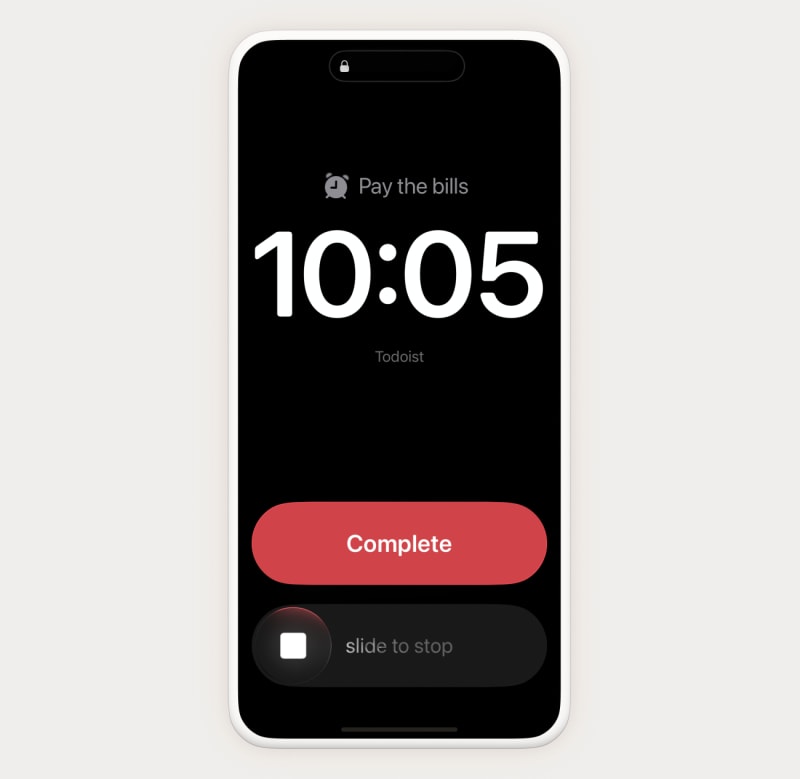
When an urgent reminder alarm goes off, it’ll appear on your device’s lock screen, and it’ll keep ringing until you press Stop to turn it off.
To set a different tone for urgent reminders, follow these steps:
- Tap the Settings app of your Android device.
- Tap Notifications > App notifications.
- Select Todoist.
- Tap Other below the Notification categories section.
- Tap Show unused categories.
- Select Urgent Reminders.
- Tap Sound.
- Choose a new sound.
Changing the urgent reminder tone won’t change the default tone of your other reminders.
Note
Remove an urgent reminder
If you no longer need the urgent reminder, here's how to remove it from the task:
- Tap the task with an urgent reminder. This opens the task view.
- Tap the Reminders chip (alarm clock icon).
- Tap the dismiss icon next to the urgent reminder to remove it.
- Tap the task with an urgent reminder. This opens the task view.
- Tap the Reminders chip (alarm clock icon).
- Tap the dismiss icon next to the urgent reminder to remove it.
Troubleshoot urgent reminders on Android
If you’re using an Android device, and an urgent reminder shows up as a regular notification instead of a full-screen alarm, or doesn’t go off at all, a setting on your device is usually holding it back. Here’s how to troubleshoot these issues.
These steps may differ depending on your Android device’s settings, and some devices have options that quietly hold notifications back, like Gentle notifications on Huawei or the Brief pop-up on Samsung. If you’re not sure where the setting is located or if the interface is different, contact your device manufacturer.
Update Todoist for Android and your Android device
Make sure you’re using the latest version of Todoist for Android, and your device is running on the latest version of Android.
Allow full-screen notifications
On Android 14 and later, Todoist needs permission to show full-screen notifications. Here’s how to turn it on for Todoist:
- Tap the Settings app of your Android device.
- Tap Notifications > App notifications.
- Select Todoist.
- Go to the App settings section.
- Toggle Allow full-screen notifications on.
Send urgent reminders to this device
You can only send urgent reminders to one device. To set the correct device:
- Tap Browse at the bottom-right.
- Tap the gear icon at the top-right.
- Select Reminders.
- Tap Urgent reminders will be displayed on…. If Todoist doesn’t have permission to show full-screen notifications yet, your device’s settings will open.
- Toggle Allow full-screen notifications on, then go back to Todoist.
- Tap Urgent reminders will be displayed on… again. You’ll see This device below it.
Check the Urgent Reminders notification category
In your device’s notification settings for Todoist, open the Urgent Reminders notification category and make sure it can make a sound and show pop-up notifications. You can even set it to show a notification dot or override Do Not Disturb mode. Making changes to just the Reminders notification category doesn’t affect urgent reminders.
Check your connected watch
If you’re not receiving urgent reminders on your Android phone, check if you’re seeing the reminders on your Wear OS device. A connected watch can take over notifications, causing your Android phone to remain silent or not vibrate when Todoist sends an urgent reminder.
Note
Get in touch
If you're having trouble setting an urgent reminder, responding to it, or removing it from a task, get in touch with us.