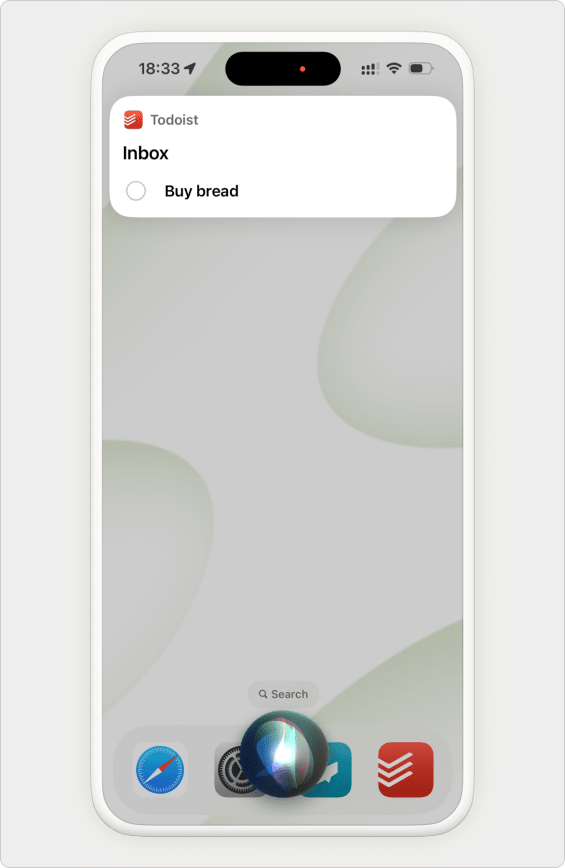
Hey Siri, remind me to “Buy a present tomorrow 5:00 PM” in Todoist.
Easy-peasy, right? Dictate tasks with just your voice, so you can capture and view your todos without needing to pull up your device. It works with classic Siri and, on supported devices, Siri AI. Siri’s especially handy when you’re driving or if you’ve got both your hands full.
System requirements
To use Siri with Todoist, upgrade your Apple device to iOS 11 or later. To use Siri with Apple Intelligence, upgrade your Apple device to iOS 18 or later.
The new Siri AI capabilities are in beta. To use them, you need:
- iOS 27 or later
- An iPhone 15 Pro or later, or an iPad with an A17 or M1 Pro chip or later
- A supported language and region for Apple’s Siri AI features
- The Siri AI beta turned on: go to Settings > Siri > Try Siri AI (Beta)
To check which languages and regions Siri AI supports, visit Apple Support.
If you’re using a macOS, Apple Watch, or CarPlay device, there’s no option to use Siri with Todoist, including the new Siri AI capabilities.
Siri AI vs. classic Siri
Depending on your device, OS version, and what you say, Siri works with Todoist in one of two ways:
- Siri AI (see System requirements above): say things like “Remind me to [task name] in Todoist” or “Add a reminder to [task name] in Todoist” to set up a task with all its details in one sentence. If you say “Add a task in Todoist” instead, classic Siri handles the request, even on a device that supports Siri AI.
- Classic Siri (earlier iOS versions, or an incompatible device): say “Add a task in Todoist” or “Add [task name] in Todoist” to create a task with a name, a project, and a one-off date. Classic Siri keeps working the same way it always has.
Note
Set up Siri
If you’re using your device without Apple Intelligence, you can start using Siri with Todoist right away.
If you’re on iOS 27 or later, here’s how to set it up:
- Open Settings.
- Tap Siri.
- Scroll down and tap App Access.
- Select Todoist.
- Turn on Use with Siri.
If you’re using Apple Intelligence and Siri on an earlier iOS version, here’s how to set it up:
- Open Settings.
- Tap Apple Intelligence & Siri.
- Scroll down and tap Apps.
- Select Todoist.
- Select Apple Intelligence & Siri.
- Turn on Use with Siri Requests.
Create a task, project, or section with Siri AI
With Siri AI, you can set a task’s name, description, project, section, date and time (including recurrence), priority, labels, and location trigger, all in one sentence. Here are some examples:
| Action | Commands | Tips |
|---|---|---|
| Add a task with a date, time, and priority |
| Combine as many details as you want in one sentence, and Siri AI fills in the rest. |
| Add a recurring task |
| Recurrence works the same way it does when you type a date in Todoist. |
| Add a task with a location trigger and a label |
| The reminder triggers when you arrive at or leave a location, instead of at a specific time. |
| Create a project or section |
| Combine both actions in one sentence, like Create a project called Lightbulbs and a section called Fluorescent in Todoist. |
Complete, update, or delete a task with Siri AI
With Siri AI, you can mark a task as complete or remove it from Todoist without opening the app. For example:
- Complete [task name] in Todoist
- Complete “Photo shoot for 123 Brannon Street” in Todoist
- Delete [task name] in Todoist
You can also update tasks with Siri AI. To update a task you just created, use a conversational follow-up. To update tasks on your screen, refer to them when you talk to Siri AI.
Note
Refer to tasks on your screen with Siri AI
With Siri AI, you can refer to the tasks on your screen. To use this feature, update Todoist for iOS to the latest version.
Say this or these to refer to the tasks on your screen. For example:
- Complete this
- Move all of these to my DIY project
You can also refer to a task by its position on your screen, like first, fifth, or last. This works in list layout and board layout.
In list layout, you can say:
- Complete the first one
- Reschedule the last one to next week
In board layout, you can say:
- Complete the first one (when only one column is on your screen)
- Complete the first one in the Todo column (when more than one column is on your screen, and one of them is named Todo)
Note
Make conversational follow-ups with Siri AI
After you create or update a task with Siri AI, you can keep talking to Siri to fine-tune it. Each follow-up applies to the task you just worked on. For example:
- “Remind me to buy milk in Todoist.”
- “Add the errand label.”
- “Actually, make that Tuesday.”
Use information from your device with Siri AI
Siri AI can use information from elsewhere on your device, like your calendar events and the place you’re looking at in Maps. For example, say:
- Add a reminder to buy a present a week before Gareth’s birthday in Todoist
Siri AI finds the calendar event for Gareth’s birthday and gives the task the right date.
View a task with Siri
Can’t remember if you’ve already added a task to Todoist? Ask Siri to pull up a list of tasks by date, project, or both. Here are a few examples:
- Show me all the tasks for [date] in Todoist
- Show me all the tasks for the next 7 days in Todoist
- Show me all the tasks for [date] between [time] and [time] in Todoist (for example, today between 10 AM and 12 PM)
- Show me the [project name] list in Todoist
Create a task with classic Siri
With classic Siri, say “Siri” or “Hey Siri,” and use natural language to add tasks to Todoist. Here are examples of sentences to try, so that Siri understands exactly what you want to do:
Note
| Action | Commands | Tips |
|---|---|---|
| Add tasks |
| When you add a task without a project, Todoist adds it to your Inbox. |
| Add tasks to a project |
| To add a task to an existing project, say the project name followed by list in Todoist. Siri doesn’t recognize the words project or projects. |
| Add due dates and due time |
| If you don’t specify the date, but it recognizes the time and it isn’t overdue, the task is scheduled for today. If you specify the time, but it’s overdue, Todoist adds it to the task name as plain text. |

Dermot
Customer Experience Specialist
With classic Siri, you’ll need to say “in Todoist” in every request, so Siri understands what to do.
Use Siri shortcuts
Use Siri shortcuts to save time on Todoist actions you repeat often. For example, add an item to your grocery list without saying the list name every time. Learn how to use Todoist with Shortcuts.
Use Siri in a different language
With classic Siri, you can use Todoist in any of the supported languages included in iOS. However, it can be a bit unpredictable, so it helps to vary your pronunciation of the word “Todoist” or the speed and way you speak.
If your language is supported, but Siri’s having trouble adding or retrieving Todoist tasks for you, check out these example phrases from Apple Support for adding tasks or viewing tasks with Siri. Otherwise, you can use Todoist with Shortcuts to bypass the need to say “in Todoist” when speaking to Siri.
To use Siri AI, you need a language and region that Apple supports for its Siri AI features. Learn more in System requirements.
Get in touch
It’s great to have a personal assistant like Siri, but if you’re having trouble adding or viewing tasks by dictation, get in touch with us.