To get a copy of your personal data, contact the Todoist support team. When your export is ready, you’ll get an email with a link to download it as a ZIP file. Inside are JSON files with your tasks, comments, projects, and account details. You can open them in a web browser, a text editor, or Microsoft Excel.
Note
Download and unzip your data
- Open the email with the subject “Your Todoist data is ready to download.”
- Click Download your data. The link is available for 14 days.
- Save the ZIP file somewhere safe, like your computer or a cloud storage folder.
- Unzip the file.
Keep the original ZIP file even after you unzip it. That way, you’ll always have a complete copy of your data.
Files in your data export
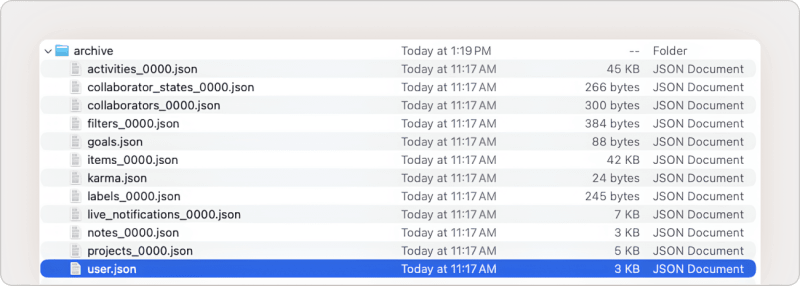
The unzipped folder contains an archive folder with a separate file for each type of data. Depending on what’s in your account, you’ll see files like these:
- items: your tasks
- notes and project_notes: your comments on tasks and projects
- projects: your projects
- activities: your activity history
- labels, filters, reminders, and locations: your labels, filters, reminders, and the places used in location reminders
- collaborators and collaborator_states: the people you share projects with and their access
- live_notifications: your notifications
- karma: your Karma history
- user and authorizations: your account details and connected apps
Larger lists are split into numbered files of up to 10,000 records each, for example items_0000.json, items_0001.json, and so on.
Open a file in Firefox
Firefox shows JSON files in a readable, searchable layout.
- Open Firefox.
- Drag a JSON file from the archive folder into the Firefox window.
Open a file in a text editor
Any text editor, like Notepad, TextEdit, or VS Code, opens JSON files as plain text. This works well if you only need to search for something specific.
- Open your text editor.
- Open a JSON file from the archive folder.
Open a file in Microsoft Excel
Excel can turn a JSON file into a spreadsheet with a column for each field.
- Open a blank workbook in Excel.
- Click the Data tab.
- Click Get Data (Power Query).
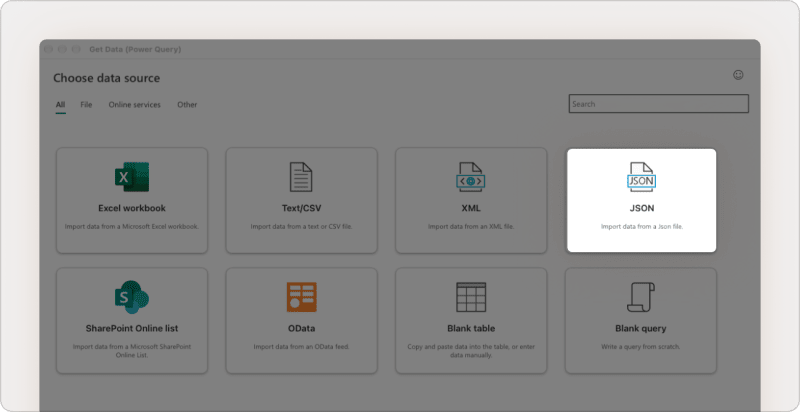
- Select JSON.
- Select the JSON file you want to open.
- Open a blank workbook in Excel.
- Click the Data tab.
- Click Get Data.
- Select From File > From JSON.
- Select the JSON file you want to open.
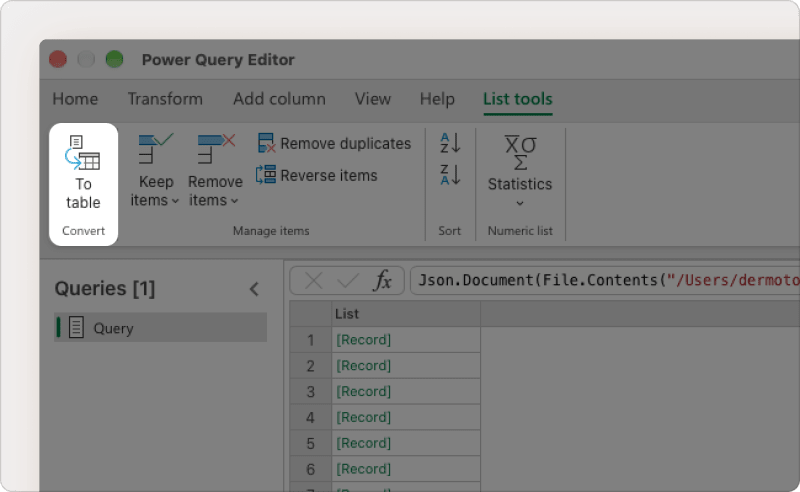
The Power Query editor opens with your data in a list. To turn it into a table:
- Click To table.
- Click OK in the Convert to table window to keep the default settings.
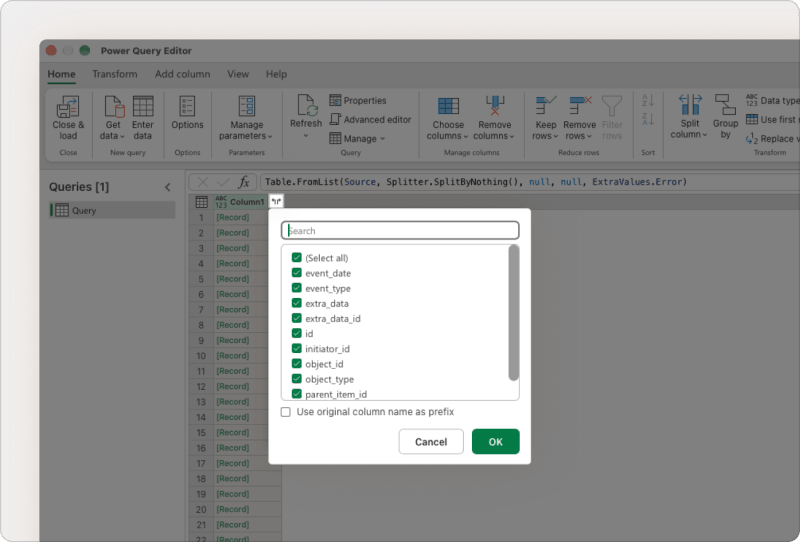
- Click the expand icon in the Column1 header.
- Select the fields you want to see as columns.
- Click OK.
- Click the expand icon on any column that still shows “[Record]”, such as extra_data.
- Select the fields you want from that column.
- Click Close & load.
![The Power Query editor showing Todoist export data in columns, with the extra_data column still showing [Record]](https://res.cloudinary.com/imagist/image/fetch/q_auto,f_auto,c_scale,w_800/https%3A%2F%2Fget.todoist.help%2Fhc%2Farticle_attachments%2F31319252361628)
Quick tip
Get in touch
If you’re having trouble opening the files in your Todoist data export, get in touch with us.