When you're browsing the web and want to save the current web page to Todoist, use the Todoist extension to save content with just a few clicks. It's currently available for Google Chrome, Edge, Firefox, and Safari.
Install the Todoist extension in your web browser.
Quick tip
If you're using the Todoist extension with Firefox or Google Chrome, you'll have a few more features available than the ones listed in this article. Read the full overview:
View your Todoist task list
To get a quick look at Todoist from your browser, click the Todoist icon in your extensions bar in the top right. A compact view of Todoist will appear:
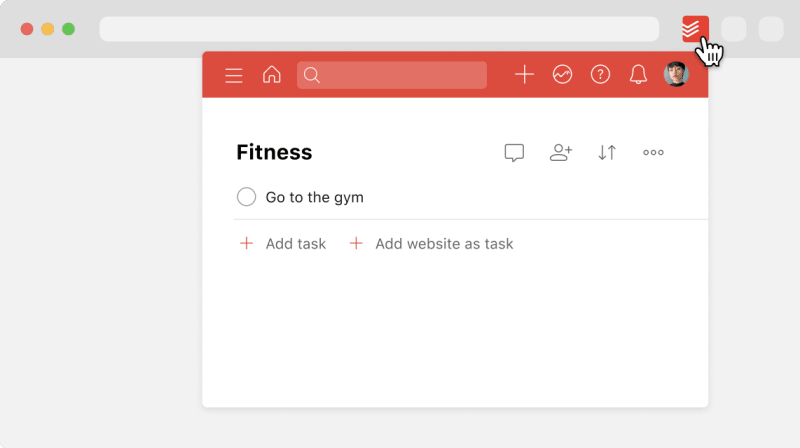
The compact view is a great way to save time: You can access any of Todoist’s features without having to leave your current web page.
Right-click a website to add as a task
Warning
- Go to the website to add as a task.
- Right-click any part of the page.
- Select Add to Todoist.
- Make any other changes, such as choosing a project, adding a label, or assigning a date and time.
- Click Add task to save the task.
Add specific text from a website as a task
- Select any text on the page.
- Right-click and select Add to Todoist. The selected text will be used as the task name.
- Make any other changes, such as choosing a project, adding a label, or assigning a date and time.
- Click Add task to save the task.
Add a website as a task from your task list
You can add the current website as a task directly from your task list in the extension:
- Click the Todoist icon in your extensions bar in the top-right.
- Click Add website as task at the end of your task list. This adds the web page title and URL as the task name.
- Click Add task to save the task.
Get in touch
If you’re having trouble using the Todoist extension in your web browser, get in touch with us.